
How it works
How gradIQual works
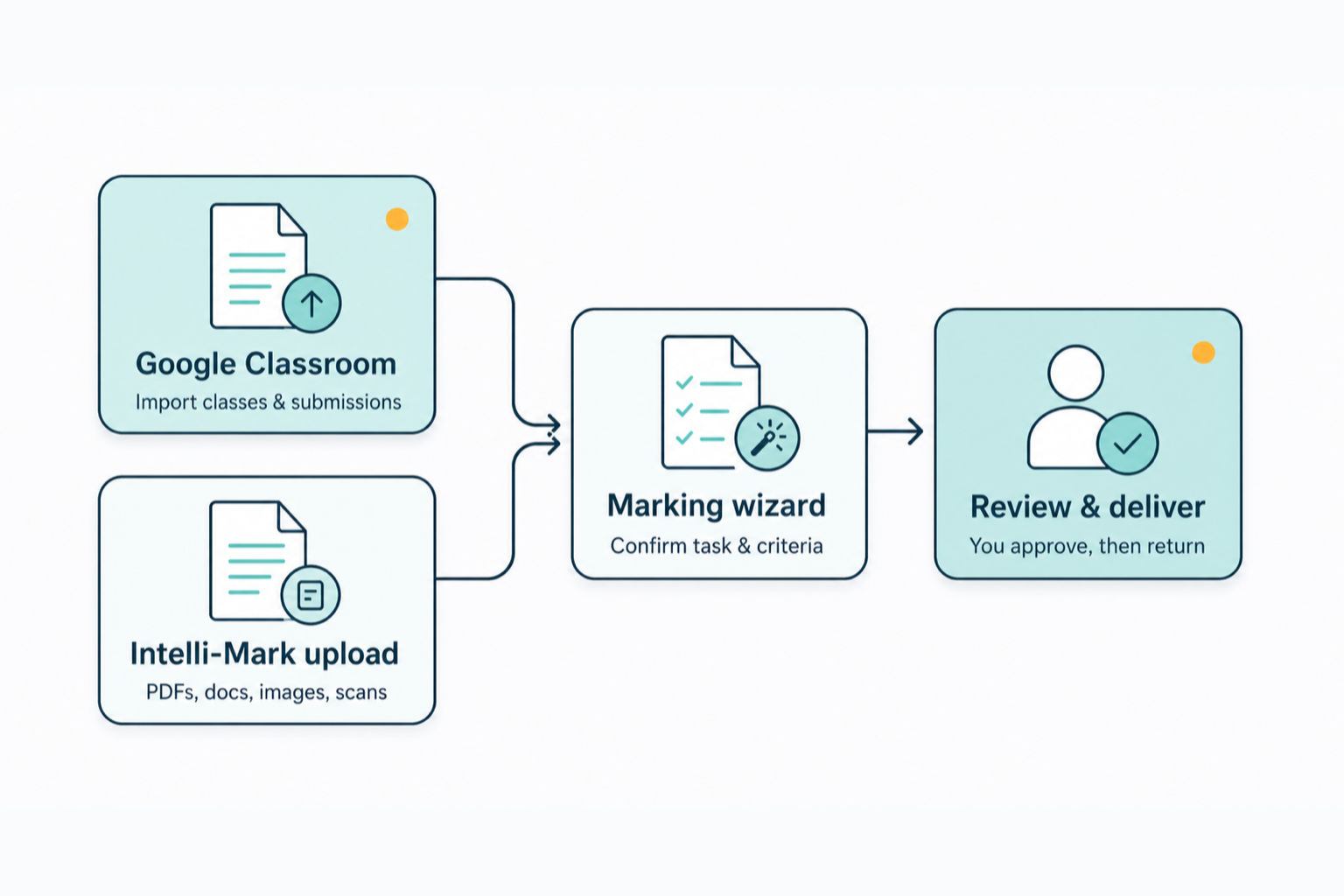
gradIQual takes you from a pile of student work to a set of reviewed, returned feedback in a single, clear flow. You stay in control the whole way through — nothing reaches a student until you approve it.
Here's the journey, end to end.
The steps
Sign in with your school account
You sign in with your Google school account. gradIQual works alongside Google Classroom and Google Drive, so signing in with the account you already teach with means your classes and work are ready to use.
Bring in your classes
Connect Google Classroom and gradIQual imports your classes and their rosters, so the students you teach are already there when you come to mark. If you'd rather not connect a class — or you're marking something that isn't in Classroom at all — you can skip straight to uploading work yourself.
Choose what to mark
Pick a class and the assignment you want to mark. gradIQual pulls in the students' submitted work ready for the marking run. You decide which assignment, which class, and when.

Set the context in the marking wizard
A short wizard confirms what you're marking and how. You tell gradIQual the kind of task — everyday homework and classwork, or a longer assessment-style paper — and add anything that helps: a mark scheme, a rubric, or a few words of instruction. You can refine those instructions and re-run the analysis until it's reading the task the way you intend.
gradIQual analyses the work and marks each student
gradIQual works through every submission and drafts feedback for each student. Depending on the kind of task, it gives developmental feedback against your criteria, marks against a paper or mark scheme, or works to a rubric — always grounded in the work in front of it and any reference material you've provided. This is where the time saving happens: a whole class set is drafted in one run.
Review every draft (you're in control)
All feedback lands as drafts for you to review. Read what gradIQual has written, edit anything you'd word differently, regenerate a piece if you want a fresh take, and approve the rest. This human-in-the-loop review step is core to how gradIQual works — the AI never returns work to students on its own.
Return feedback to students
When you're happy, return the feedback. You can publish it back to Google Classroom, download it as PDF or DOCX, save it to Drive, or email it — whichever fits your workflow. Returning work is always your decision, and you can re-send if you need to.
See what the whole class needs next
Alongside individual feedback, gradIQual gives you a whole-class summary — the common strengths, the areas to focus on, and the misconceptions that came up across the set. It's the bit that usually gets lost when you're marking thirty scripts one at a time: a clear picture of what to teach next.
Two ways in
Google Classroom, or a standalone upload
You don't need Google Classroom to use gradIQual. If you're marking work that lives outside Classroom — scanned papers, a folder of essays, mixed file types — you can upload it directly. Either path leads to the same review-first flow.
Ready to try it on a real class set?
Free gives you one class set a week and one assessment paper to try.